
A Kling Motion Control reference video is the clip that shows the action your character should perform. Start with one visible performer, one uncut take, and enough room for the entire movement. On AI Videoer, Kling 3 accepts 3–30 seconds in MP4 or MOV; Kling 2.6 accepts 3–5 seconds in MP4. Check the clip and its framing before spending credits.
What files can you upload on AI Videoer?
| Motion video check | Kling 3 Motion Control | Kling 2.6 Motion Control preview |
|---|---|---|
| Container | MP4 or MOV | MP4 |
| Duration | 3–30 seconds | 3–5 seconds |
| Upload limit | 100 MB | 20 MB |
| Dimensions | Both sides over 340 px | No separate site-side check |
| Aspect ratio | 2:5 to 5:2 | No separate site-side check |
These are upload rules for the AI Videoer generator. Other sites may expose different settings. The character image is a separate input: one JPEG or PNG up to 10 MB, with both sides over 340 px for Kling 3 or over 300 px for Kling 2.6, and an aspect ratio between 2:5 and 5:2.
Reference video checker
Choose a clip to compare its duration, size, reported file type, and applicable dimension rules against both models. This check is free and does not upload the clip. When you know the duration, estimate the credits for your attempts.
The file stays in your browser. This reads file headers and does not test playback, server acceptance, or the quality of the motion.
How to film and trim a usable motion reference
- Pick the part of the movement you want to keep. For a wave, include the hand rising, moving, and settling. Leave that action in one continuous shot when you trim.
- Check the frame at the widest movement. Scrub through the clip. A dancer's feet or a performer's hands may leave the frame even if the opening looks good. If you crop a clip, recheck those moments after cropping.
- Match the character image to that framing. Pair full body with full body and a waist-up action with a waist-up character. For a piano shot, look at where the keyboard lands relative to the performer's hands in both views.
- Review the exported file. Play it back, check the exact duration and dimensions, and confirm that the selected model accepts the container. Renaming a file extension does not convert it. Use footage, character images, and audio you have permission to use.
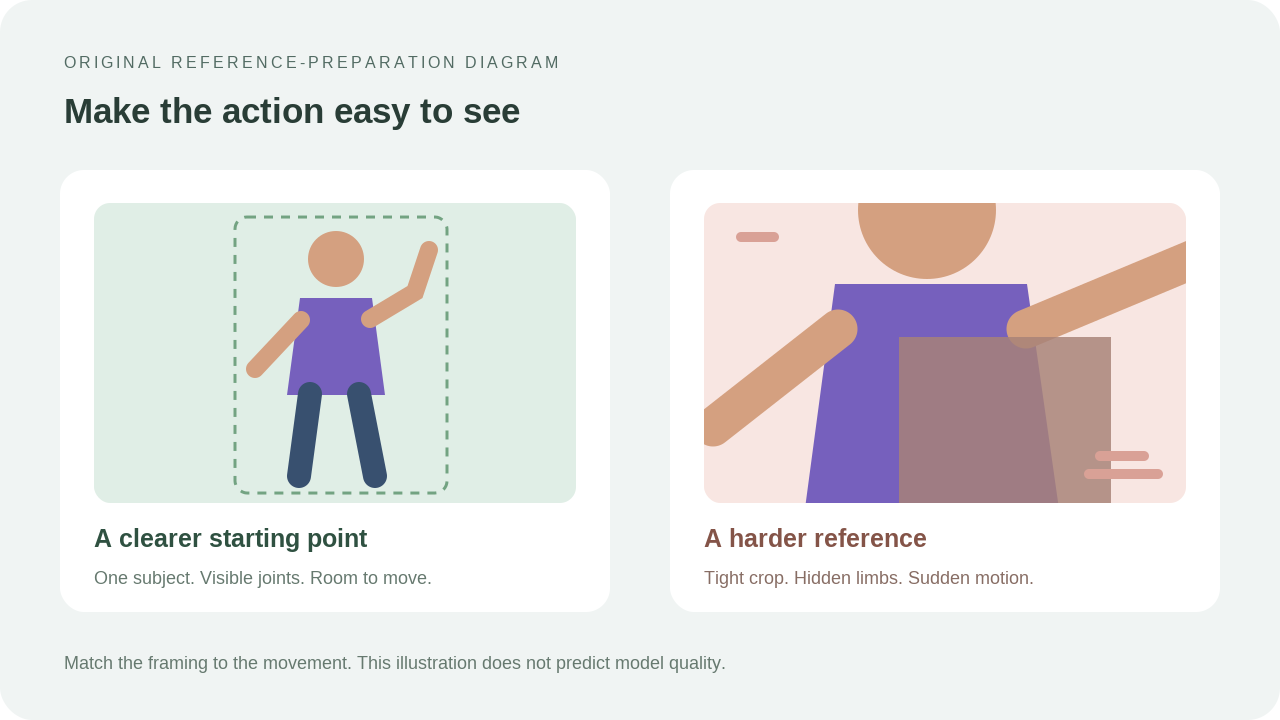
AI Videoer framing diagram. The left crop leaves room for the whole motion. The right crop obscures part of the performer. These are preparation examples, not model results.
The official Kling Motion Control guide recommends a clear subject, steady movement, and a continuous take. Its examples explain why footage with cuts, heavy camera movement, or very fast action can be harder to use.
Watch a reference clip and check it against the rules
Sample input: a dancer in one continuous shot.
Watch the space around the hands and feet as the performer moves. The clip is 384 × 684 px and about 14.9 seconds long. Its size, aspect ratio, format, and duration fit the published Kling 3 upload checks on AI Videoer. It is too long for the Kling 2.6 preview. This is a sample input; no paired generation result is shown.
Why was my reference video rejected or cut short?
| What you see | First check | What to try |
|---|---|---|
| A 6-second MP4 fails on Kling 2.6 | The preview allows up to 5 seconds | Trim a continuous segment to the allowed range or select Kling 3 and upload again |
| The export has black bars and the performer is tiny | The frame may contain more border than useful action | Crop only unused border, then check dimensions and watch the full movement again |
| The file extension looks right but the clip will not open | The exported file may be unreadable by the browser | Export a readable MP4 and play the result locally before uploading |
| The generation ends before the reference does | Fast movement or cuts may reduce the usable segment | Try one shorter, steady take and compare the same moment in each output |
| Hands miss an object after generation | The hands and object may not line up across both inputs | Change the source framing or prop position before changing the prompt |
The first three checks deal with the file or composition. The last two deal with what happens after generation. A file meeting the published limits can still produce imperfect motion.
See how others used the workflow
For a more controlled comparison, Fuser's Kling 3 guide shows the same reference tested with two orientation settings. Treat those results as observations from Fuser's setup.
Once your files are ready, follow the Kling Motion Control walkthrough for orientation, prompts, and credits, or open the generator to check your quote.